
Billing Software for Shops: Features, Benefits and How to Choose the Right One
If you still write bills by hand, or wait for a slow old computer while customers queue, you know the cost. Bills take too long, tax sums go wrong and nobody can say exactly how much stock is left. Good billing software fixes this by making the bill, taking the payment and updating stock in one step. Many shops now choose billing software that also manages stock, customers and reports instead of juggling separate tools.
This guide explains what billing software does, which features matter for an Indian retail shop, and how to choose one without being rushed by a salesperson.
What Is Billing Software?
Billing software is a program that creates bills or invoices for sales, calculates tax and discounts, records how the customer paid, and keeps a record of every sale. In a retail shop, good billing software also reduces stock after each sale and gives you sales reports.
You will see it called invoice billing software, sales billing software, computerized billing software or shop billing software. The names differ, but the core job is the same: a correct bill, made quickly, with a record you can trust.
One note on “automatic billing software”. It can mean software that calculates tax and updates stock by itself at the counter. It can also mean software that sends recurring invoices to subscribers. This guide is about the first kind, which is what a shop counter needs.
Which Billing Method Are You Using Today?
Before choosing software, it helps to see where your current method falls short. This is a general comparison.
| Method | Works well when | Common weak points |
|---|---|---|
| Bill book or notebook | Very few bills a day | Slow, calculation errors, no stock view, hard to find old bills |
| Excel sheet | You issue a few invoices and know formulas | No scanning, easy to overwrite, no staff control, one user at a time |
| Old desktop software | One counter, one computer | Data is tied to that computer, backups are your job, no access from home |
| Online billing software | You want access from any device or have several counters | Needs a plan for internet cuts, so check offline mode |
If you are comparing paper with software, our guide on manual billing vs POS software goes through speed, accuracy and cost in more detail.
Features That Matter in Billing Software
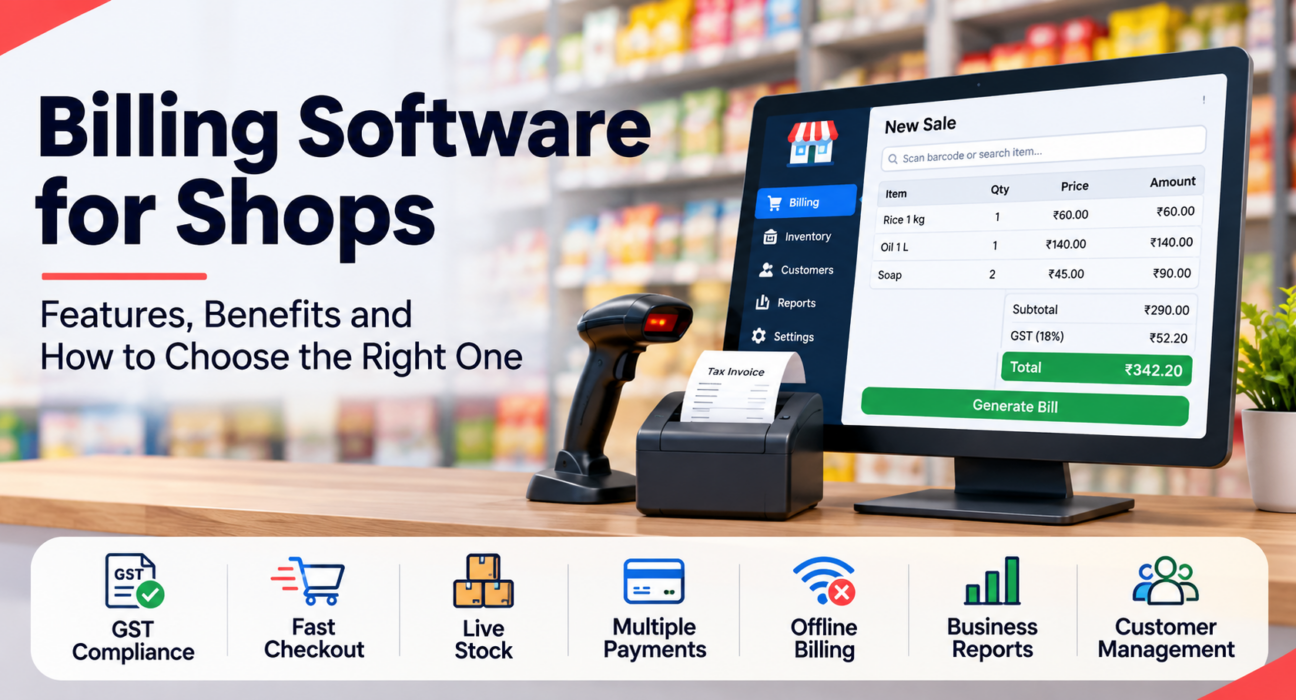
Most products list dozens of features. For a shop, these seven decide whether the software helps or hurts.
1. Correct tax handling
Under GST, a registered business issues a tax invoice for taxable supplies. A bill of supply is used for exempt supplies and by composition dealers. The CGST Rules set out what each document must contain (Rule 46 for tax invoices, Rule 49 for bills of supply).
Your software should therefore let you:
- Set a tax rate for each item
- Show prices with tax included or excluded
- Show a clear tax breakup (CGST, SGST or IGST)
- Print a tax invoice or a bill of supply as needed
If you sell outside India, check that VAT or sales tax is supported. GST rules change, and some obligations, such as e-invoicing, depend on your turnover. Please confirm your needs with your chartered accountant or the official GST portal, and ask any vendor directly about the specific features you need.
2. A fast checkout
Speed at the counter is where you feel software every day. Look for barcode scanning, quick item search, item pictures for loose or unbarcoded goods, and the ability to hold one bill while serving the next customer. Shops selling loose goods by weight should also check that the software works with weighing-scale labels.
3. Live stock
Billing and stock should talk to each other. Every sale and return should change the stock count automatically. You should also be able to record supplier deliveries, correct a count with a reason, and see low-stock alerts before an item runs out.
4. Payments and receipts
Customers pay by cash, card, wallet or QR code, and sometimes a mix. The software should handle split payments and show the change for cash. For receipts, a thermal printer is standard at the counter, while business buyers usually want a full A4 invoice with their tax number. Sharing a receipt on WhatsApp or email is now a common expectation.
5. Offline billing
Internet and power cuts happen. If you choose online billing software, ask what works without a connection. Billing, returns and closing the shift should continue, and the software should send everything in the right order when the connection returns, without duplicate bills.
6. Staff control
When several people use the counter, you need to know who did what. Useful controls include personal PINs, a discount limit for cashiers, manager approval above that limit, and an activity log of important changes. These controls help you review what happened, but they do not replace regular supervision.
7. Reports you will actually use
Look for daily sales, best sellers, tax reports, profit and cash by shift. An Excel download helps when your accountant needs data for returns.
Benefits of Using Billing Software
- Shorter queues: scanning is faster than typing or writing.
- Fewer calculation mistakes: tax, discounts and totals are worked out by the system.
- Better stock visibility: you see what is selling and what is running low.
- Easier tax records: sales and tax reports are ready when you or your accountant need them.
- Clearer cash handling: shift reports show the difference between expected and counted cash.
- Customer history: you can find a customer by phone number and see past purchases.
None of these happens by itself. The software only helps if items, prices and tax rates are set up correctly and staff use it for every sale.
How to Choose Billing Software: A 7-Step Checklist
- List your daily tasks. Note how many bills you make, whether you sell loose items, how many counters you have and who bills.
- Check tax support. Confirm that it handles the documents and tax types your business needs.
- Test it with 20 of your real items. Add your items, scan a few, make a return and print a receipt. A demo with sample data proves little.
- Check your hardware. Ask whether it works with the computer, scanner and printer you already own, and which browsers or devices it supports.
- Switch off the internet. Try billing offline, then reconnect and check that every bill appears once.
- Ask about your data. Can you download your sales and stock? What happens if you stop paying?
- Get the full cost in writing. Ask about extra counters, extra stores, support and any hardware you may need.
If you are moving from an existing system, plan the changeover carefully. Our guide on how to implement POS software in an existing store gives a step-by-step plan. For a wider buyer’s checklist, see how to choose POS software.
Common Mistakes to Avoid
- Choosing on price alone. A cheap tool that slows your counter costs more than it saves.
- Paying for features you will not use. A small shop needs a few things done well, not every module.
- Skipping staff training. If cashiers find it confusing, they will go back to paper.
- Importing messy data. Wrong prices or tax rates on items will produce wrong bills.
- Ignoring exports and backups. Make sure you can always take your data out.
- Assuming “GST ready” covers everything. Ask exactly which documents and tax settings are supported.
Practical Examples
These are hypothetical examples to show how needs differ.
A grocery shop with 150 bills a day. Customers buy packed items and loose goods like rice and vegetables. The owner needs barcode scanning, weighing-scale labels, split payments and low-stock alerts, so fast billing and live stock matter most. See how this looks for grocery stores.
A hardware shop with thousands of items. Many buyers are contractors who want a proper A4 invoice with their tax number. The owner needs quick item search, tax invoices and customer history. This is typical of hardware stores.
A small chain with three outlets. The owner wants stock per store and a way to compare stores. Here, the number of stores and counters a plan allows becomes an important question.
How AvenuePOS Can Help
AvenuePOS is POS billing software for retail stores. It combines billing, inventory, barcode scanning, customer records and reports in one system. It runs in a browser (Chrome or Edge) on a laptop, tablet or phone, so there is no app to install.
Features you can check on the website include:
- Offline billing, returns and shift close, with automatic sync later
- Tax invoices with a visible tax breakup, supporting GST, VAT and sales tax
- Barcode scanners, weighing-scale labels and 58 mm and 80 mm thermal printers
- Cash, cards, wallets, QR payments and split payments
- Receipts by thermal print, WhatsApp, email or A4 invoice
- Stock updated after every sale, with low-stock alerts
- Staff PINs, discount limits, manager approval and an activity log
- Reports you can download to Excel
AvenuePOS offers a 14-day free trial with no card needed. If you do nothing after the trial, your shop becomes read-only and your data is not deleted. Plans differ by the number of stores, counters, team members and products, so check the current details on the website before deciding.
Frequently Asked Questions
What is the best billing software for a small shop?
There is no single best option. The best billing software is the one that fits how your shop works: fast checkout, correct tax, live stock and reliable offline use. Test two or three products with your own items for a day before deciding.
Is GST billing software compulsory?
GST law requires registered businesses to issue the correct tax invoice or bill of supply. It does not require a particular software. Billing software simply makes this easier and reduces errors. Confirm your exact obligations with your chartered accountant.
What is the difference between billing software and POS software?
Billing software mainly creates invoices and tracks accounts. POS software runs the whole counter, including scanning, payments, stock, staff control and reports. Many POS systems also include billing. Our article on POS software vs billing software explains this in detail.
Can billing software work without internet?
Some can. Offline billing depends on the product, so ask exactly what works without a connection, such as billing, returns and shift close. Also check that bills sync once, in order, when the internet returns.
Can I use billing software on my existing computer?
Often yes, especially with online software that runs in a browser. Check the supported browsers and devices, and whether your barcode scanner and printer will work. AvenuePOS works in Chrome or Edge on Windows, Mac, Android and iPad.
How much does billing software cost?
Costs vary by product, number of counters and stores, and support. Ask for the total cost, including extra counters, hardware and setup, rather than only the starting price. A free trial lets you test before you pay.
How do I move from Excel or a notebook to billing software?
Prepare your item list with prices and tax rates, then import it if the software allows Excel import. Train your staff, and run the new system alongside your old method for a few days before switching fully.
Conclusion
The right billing software saves time at the counter, reduces mistakes and shows you what is selling. Choose by testing with your own items, checking tax support, trying offline mode and confirming the full cost. If you want to see how one option works, you can compare billing software plans and start with the free trial using your own shop’s items.